JACoW Styles
The Cat Scan Editor examines the DOCX to check that the current JACoW Styles are embedded in the document.
It is always recommended that authors use the most up to date template. This tool will be far more effective for authors who are using a current template.
The current JACoW Word Styles which come with the recent template are;
| JACoW Template Supplied Styles |
| JACoW_Abstract_Heading |
| JACoW_Author List |
| JACoW_Body Text Indent |
| JACoW_Bulleted List |
| JACoW_Numbered list |
| JACoW_Paper Title |
| JACoW_Reference #10 onward |
| JACoW_Reference #1-9 when >= 10 Refs |
| JACoW_Reference <= 9 Refs |
| JACoW_Reference Italics |
| JACoW_Reference url_doi |
| JACoW_Third-level Heading |
| JACoW_Section Heading |
| JACoW_Subsection Heading |
Viewing & Applying Your Document Styles
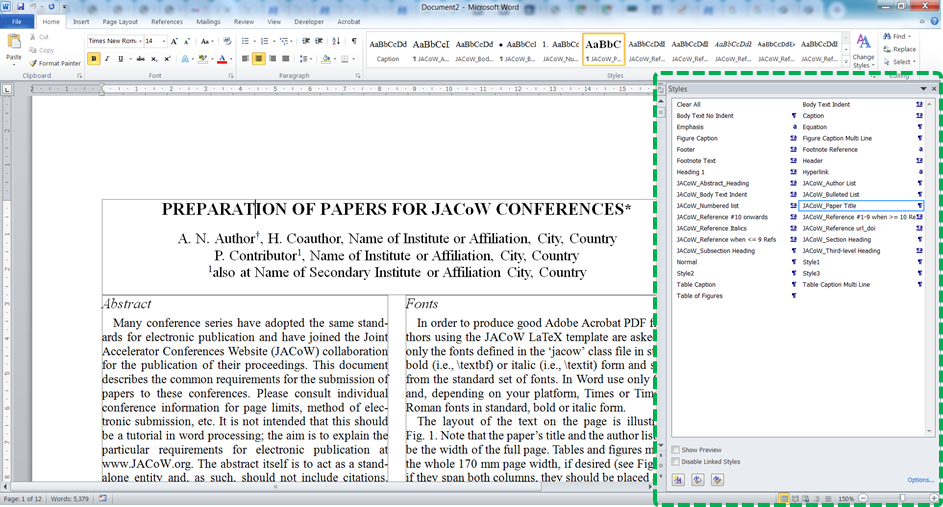
To see and use the Styles in your document go to the Home tab, and look within the Styles section of the ribbon. Alternatively you can open the Styles Window by the keyboard shortcut Alt + Ctrl + Shift + S.
Styles Window to view and select styles in your document.
To Apply a Style, select the section of content that you wish to apply the style to, and the Click on the style in the Style Window or Style section of the Home tab ribbon.
Adding Missing Styles
It is always best to start with the current JACoW template which can be found here MS Word.
You can however import the styles from the template into your existing word document by doing the following.
Importing Template Styles
- Download the current JACoW Word Template.
- Goto MS Word and save a local copy of the JACoW Word Template into a known location on your machine.
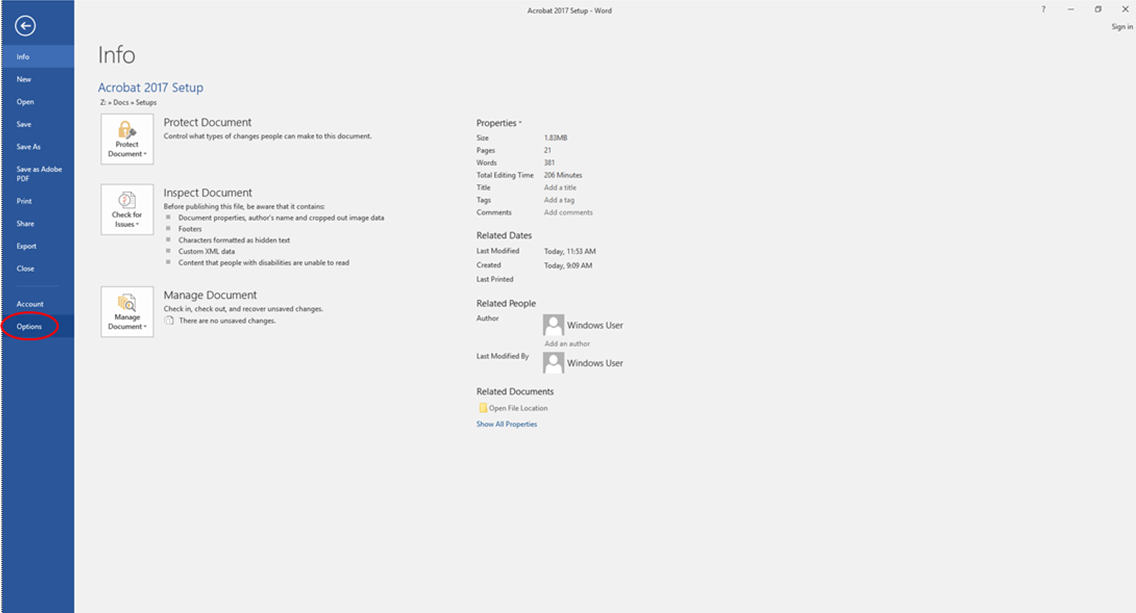
- In word with your target document open, go into the File -> Options.
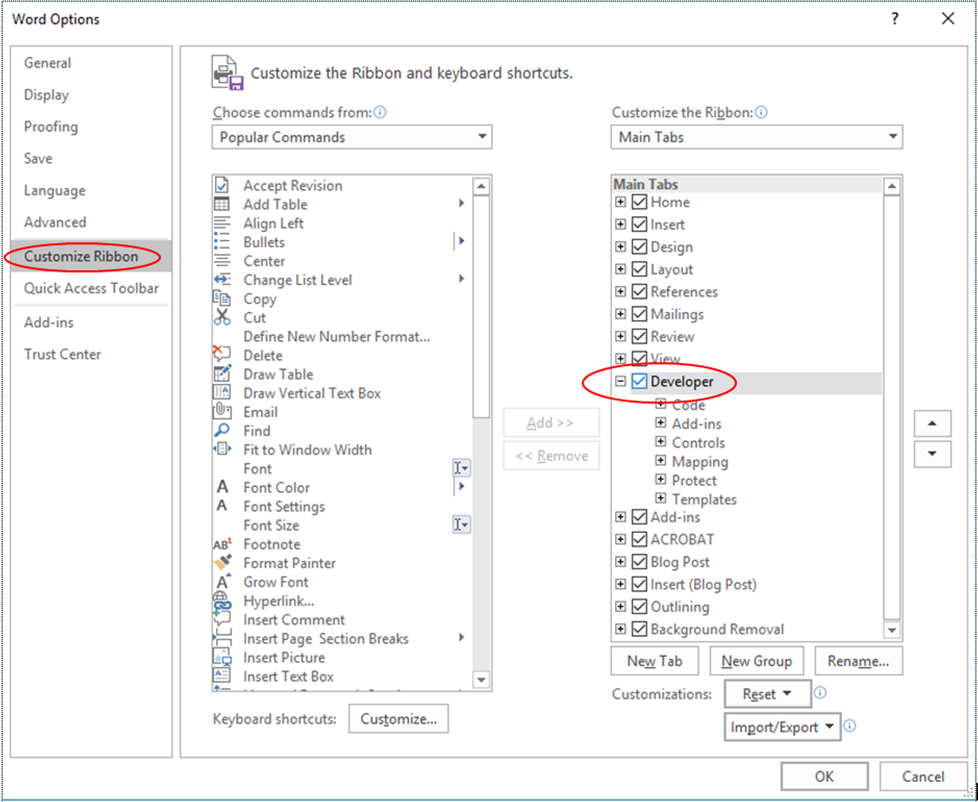
- In the Word Options dialogue select Customize Ribbon, and then Tick the checkbox for Developer, Click on 'OK to return to main Word Screen.
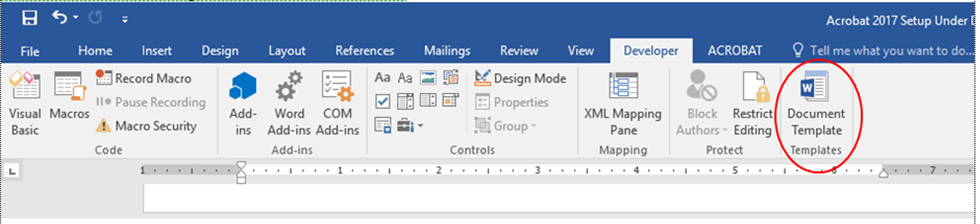
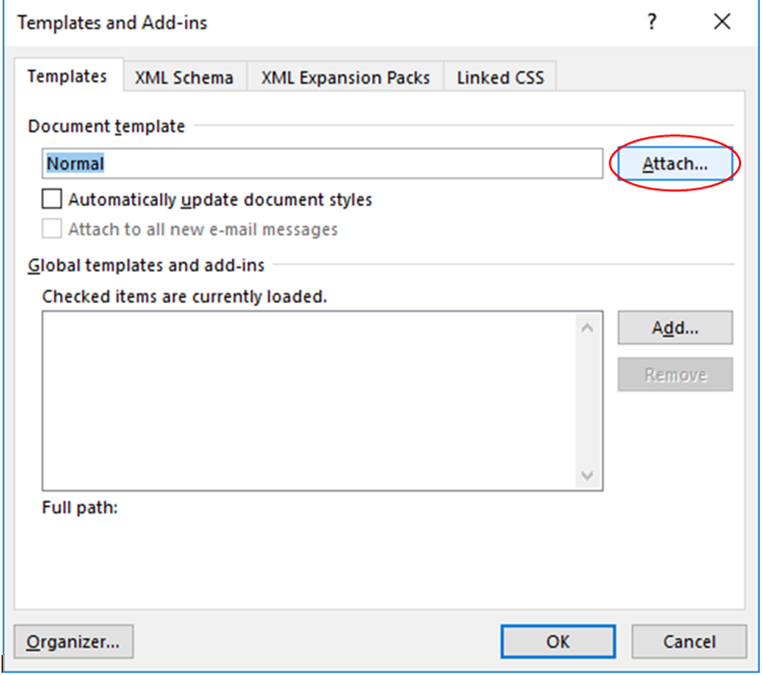
- On the Ribbon you will now have the Developer Tab, Click on this tab and Click on Document Template to launch the Templates and Add-ins dialogue. On the opened Templates and Add-ins dialogue Click on Attach....
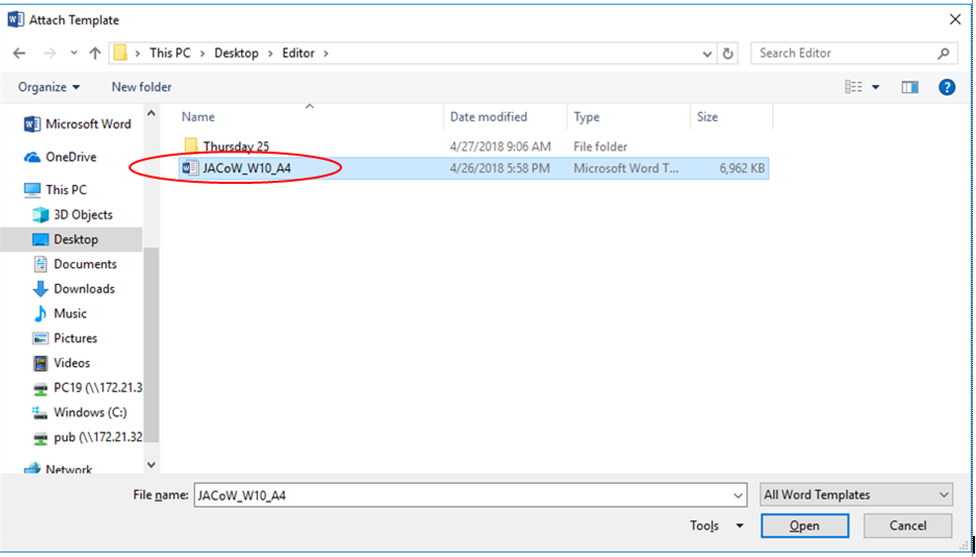
- In the file dialogue that opens after Clicking on Attach..., navigate to the Word JACoW Template that you previously downloaded, Select the template and Click Open.
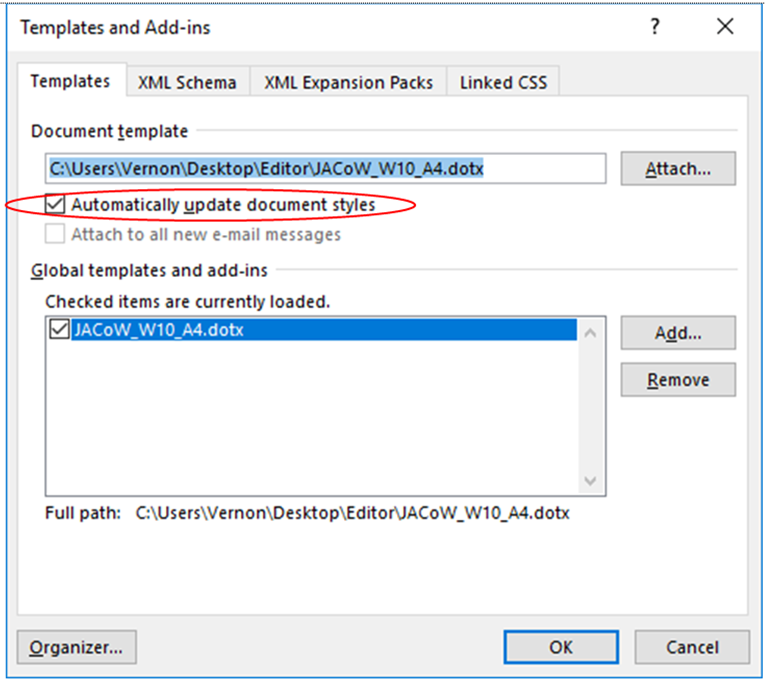
- On the Templates and Add-ins dialogue Tick the Automatically update document styles Check Box, then Click OK.
Your document should now have all the styles from the JACoW Template included in the document.