

How To Move Objects with PitstopContact: Raphael Mueller, GSI If the text isn’t inside the margins on all pages. It may be moved using Select Objects in the
PitStop toolbar to the left. Once you click on this button, the Enfocus PitStop Inspector should appear, and then select the Position tab: 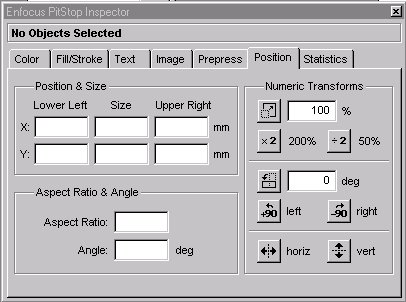 Click on the document and select the object that you want to move: 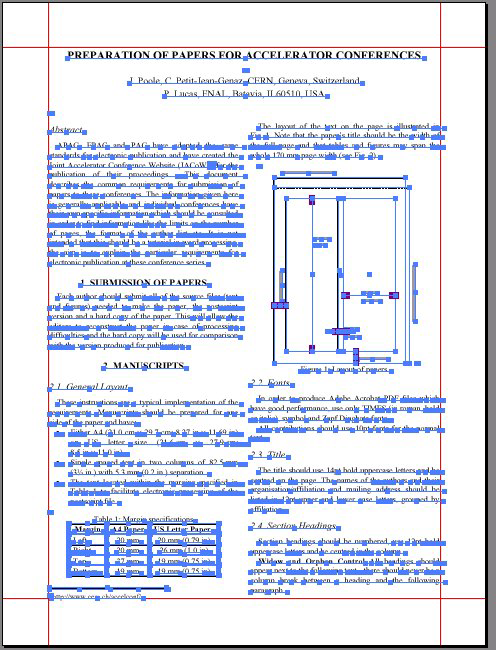 The Enfocus PitStop Inspector should change (depending on your selection): 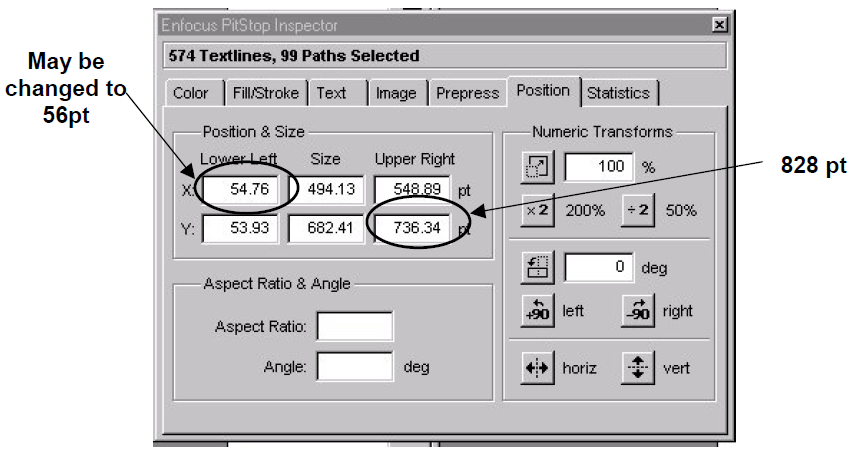 Move or scale the selected object by changing the values in the Position and Size area. Lower left: Distance between the lower left point of the object and the lower left corner of the page. Size: height and/or width Upper Right: Distance between the upper right point of the object and the lower left corner of the page. |

